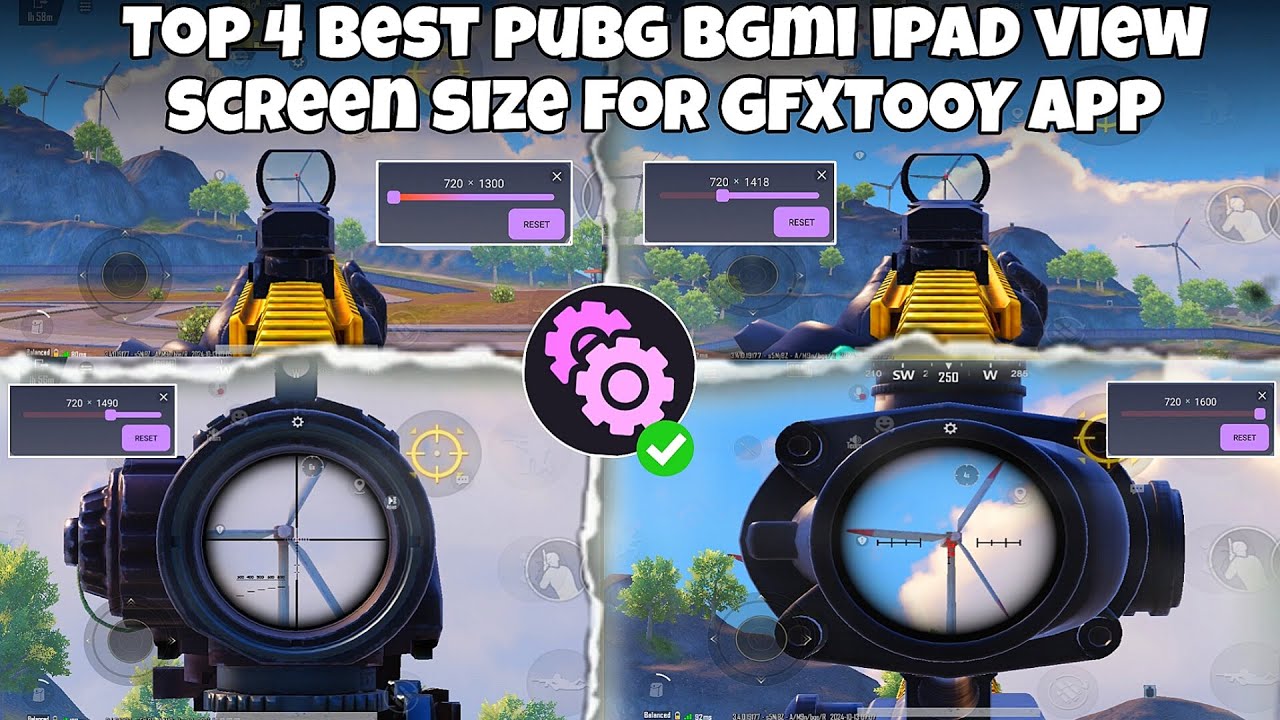
Many PUBG Mobile & BGMI players want the same wide field of view that iPad users have. With the latest updates, this is now possible on ANY Android device.
Using GFXTOOY with Shizuku, you can enable a real iPad View by changing the screen resolution dynamically — without root and without any ban risk.
In this guide, you’ll learn how to activate iPad View and use the Resolution Changer (Floating Seekbar) step by step.
Free · One App · Everything Unlocked
Unlock What PUBG Mobile Hides From You
120 FPS on unsupported devices, iPad View, no-recoil sensitivity codes — GFXTOOY gives you every hidden setting in one tap, no root needed.
- 120 FPS on non-supported devices
- iPad View — wider FOV, bigger screen
- No-recoil sensitivity codes built-in
- HD & Ultra graphics · 100% no ban
📺 Video Guide: Resolution Changer & iPad View
Watch this complete tutorial showing how to change resolution in-game and get iPad View using GFXTOOY:
🎯 This video demonstrates real-time resolution adjustment using the floating seekbar.
📱 What is iPad View in PUBG Mobile?
is a custom screen resolution that gives you a wider field of view (FOV), similar to what iPad players see.
With a wider screen ratio, you can:
- 👀 See more area on the left and right
- 🎯 Spot enemies earlier
- ⚔️ Gain advantage in close combat
- 🧠 Improve overall game awareness
🧩 Works on ALL Android Devices
This method works on:
- 📱 Low-end devices
- 📱 Mid-range phones
- 📱 Flagship phones
- 📱 Devices without 120Hz screens
Thanks to Shizuku, GFXTOOY can apply system-level screen resolution changes without root.
🔧 Requirements
- Android 8.0+
- PUBG Mobile or BGMI (latest version)
- GFXTOOY (latest version)
- Shizuku app
- Developer Options enabled
⚡ Step-by-Step: Enable iPad View
🟢 Step 1: Install GFXTOOY & Shizuku
Install both apps and make sure Shizuku is properly set up.
🟢 Step 2: Start Shizuku Service
Start Shizuku using Wireless ADB or USB ADB. Once started, you should see:
✅ “Shizuku is running”
🟢 Step 3: Open GFXTOOY
- Launch GFXTOOY
- Grant Shizuku permission
- Select your game version (Global / BGMI / KR / JP)
🟢 Step 4: Enable iPad View (Resolution Changer)
- Scroll to Custom iPad View
- Enable Floating Seekbar
- Allow “Display over other apps” permission
🟢 Step 5: Launch the Game
Start PUBG Mobile / BGMI from GFXTOOY. You will see a floating seekbar on the screen.
🟢 Step 6: Adjust Resolution In-Game
Drag the seekbar left or right to change resolution in real time:
- ⬅️ Left = Better performance
- ➡️ Right = Wider iPad View
🎯 Recommended iPad View Resolutions
- 1728×1080 – Balanced (recommended)
- 1920×1200 – iPad-like wide view
- 2048×1152 – Maximum visibility
💡 If you experience lag, slightly lower the resolution using the seekbar.
🔒 Is This Method Safe?
- ✅ 100% safe
- ❌ No root required
- ❌ No game file modification
- ❌ No ban risk
Shizuku is a trusted Android tool and GFXTOOY does not inject cheats.
❓ Frequently Asked Questions
Will I get banned?
No. This method does not modify PUBG or BGMI core files.
Does iPad View reduce FPS?
Higher resolution may slightly affect FPS. You can balance FPS and view using the floating seekbar.
My phone overheats
- Lower resolution slightly
- Use Smooth graphics
- Disable shadows
- Take breaks every 30–40 minutes
📥 Download Links
🔵 GFXTOOY
https://play.google.com/store/apps/details?id=com.middrat.gfxtooy
🔵 Shizuku
https://shizuku.rikka.app/
🏁 Final Words
With GFXTOOY + Shizuku, iPad View is no longer limited to tablets. Any Android device can now enjoy a wider field of view and better gameplay.
🔥 Try it today and experience PUBG Mobile like an iPad player.
Comments