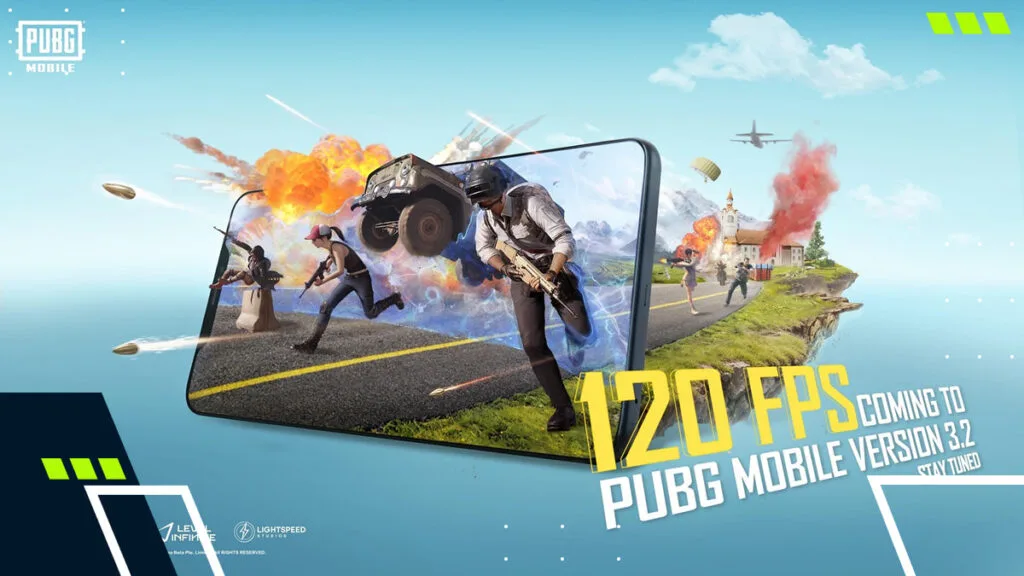
Playing PUBG Mobile at 120 FPS feels like a completely different game. Smoother aim, faster reaction detection, and no motion blur during quick peeks. The problem? Most devices are artificially locked below their hardware limit — even phones that can physically run at 90 or 120 FPS. This guide shows you exactly how to remove that lock using GFX TOOY, completely without root.
We'll also cover the iPad View floating overlay — a live FPS seekbar that appears on top of your running game so you can monitor and adjust frame rate in real time.
Why Is 120 FPS Locked in PUBG Mobile?
PUBG Mobile uses an Unreal Engine 4 PAK file system to define which devices are whitelisted for high frame rates. If your device model isn't on Tencent's approved list, the game locks you to 60 FPS or lower — regardless of what your hardware can actually do.
Free · One App · Everything Unlocked
Unlock What PUBG Mobile Hides From You
120 FPS on unsupported devices, iPad View, no-recoil sensitivity codes — GFXTOOY gives you every hidden setting in one tap, no root needed.
- 120 FPS on non-supported devices
- iPad View — wider FOV, bigger screen
- No-recoil sensitivity codes built-in
- HD & Ultra graphics · 100% no ban
GFX TOOY works around this by injecting a device-specific PAK file directly into the game's Saved/Paks/ directory. When the game engine initializes, it reads the PAK, recognizes your device as approved, and unlocks the higher frame rate options in-game.
No root. No kernel patches. No modifying the APK.
How the 120 FPS Unlock Actually Works (Technical Overview)
Most apps that claim to "unlock" FPS are just clearing cache or changing graphics settings — they do nothing to the actual frame rate limit. GFX TOOY uses a different approach that targets the engine-level restriction:
- Select your game edition — BGMI (
com.pubg.imobile) or Global/KR/VN/TW (com.tencent.ig). Each edition uses a separate server endpoint and different PAK files. - App reads your device model — the exact device model string is sent to GFX TOOY's server.
- Server returns a device-specific PAK — the server matches your model to the correct unlock file. This is why the unlock works correctly on flagships and mid-rangers alike.
- PAK is installed to the game directory — specifically to
/Android/data/[package]/files/UE4Game/ShadowTrackerExtra/ShadowTrackerExtra/Saved/Paks/ - Shizuku handles directory access on Android 11+ — on Android 10 and below, GFX TOOY writes the file directly. On Android 11 and above, Google's scoped storage restrictions block direct access to other apps' data directories. Shizuku (a no-root ADB shell tool) grants the necessary permission to move the PAK file into place.
- Launch the game — at startup, UE4 loads all PAKs in the
Saved/Paks/folder. Your device is now recognized as 120 FPS-capable.
Go into PUBG Mobile settings → Graphics → Frame Rate and you'll see the 90 FPS or 120 FPS options enabled that weren't there before.
What Is Shizuku and Do You Need It?
Shizuku is an open-source app developed by the Android community that gives other apps ADB-level shell access — without a computer and without root. It's published on Google Play and GitHub.
Whether you need it depends on your Android version:
| Android Version | Shizuku Required? |
|---|---|
| Android 10 and below | No — GFX TOOY writes the PAK directly |
| Android 11 and above | Yes — needed to access the protected game directory |
If you're on Android 11+, install Shizuku first and activate it using the wireless debugging method (no computer needed on Android 11+).
Step-by-Step: Unlock 120 FPS in PUBG Mobile
Requirements
- Android 7.0 or higher
- Shizuku (Android 11+ only) — available on Google Play
- PUBG Mobile installed (any edition)
- GFX TOOY installed
Steps
- Install and activate Shizuku (Android 11+ only): Open Shizuku → tap "Pairing (Android 11+)" → follow the wireless debugging prompt.
- Open GFX TOOY and select your game edition on the home screen (Global, BGMI, KR, VN, or TW).
- Go to the 120 FPS tab inside the app.
- Tap "Unlock 120 FPS" — the app contacts the server, downloads the correct PAK for your device, and installs it.
- Grant Shizuku permission if prompted (Android 11+). This is a one-time grant.
- Open PUBG Mobile → Settings → Graphics → Frame Rate → select 90 FPS or 120 FPS.
Note for BGMI players: BGMI uses a separate unlock endpoint. Make sure you select BGMI on the GFX TOOY home screen — using the Global unlock on BGMI (or vice versa) will not work correctly.
What Is iPad View in PUBG Mobile?
Despite the name, "iPad View" in GFX TOOY is not a screen resolution change and does not simulate iPad dimensions. It is a floating seekbar overlay that appears on top of your running game.
The overlay is a transparent, draggable control powered by Android's WindowManager using the TYPE_APPLICATION_OVERLAY window type — the same system used by Facebook Messenger's Chat Heads feature. It floats above the game UI at all times while the game is running.
What the Floating Seekbar Does
- Displays your current frame rate target as an adjustable slider
- Lets you change the FPS reference in real time without exiting the game
- Stays visible over the game with minimal screen footprint
- Can be repositioned anywhere on screen by dragging
It's useful for monitoring and comparing performance at different settings without alt-tabbing or restarting the game.
Step-by-Step: Enable the iPad View Overlay
Requirements
- Shizuku (for the FloatingWindowService to launch with elevated permission)
- "Display over other apps" permission granted to GFX TOOY
Steps
- Open GFX TOOY → iPad View tab.
- Grant the "Display over other apps" permission when prompted (Settings → Apps → GFX TOOY → Display over other apps).
- Tap "Start Overlay" — the FloatingWindowService launches and the seekbar appears on your screen.
- Launch PUBG Mobile — the seekbar stays visible as a floating overlay on top of the game.
- Drag the seekbar to reposition it. Adjust the slider to your desired FPS reference.
Tip: Place the overlay in a corner of the screen where it won't interfere with minimap, weapon wheel, or fire buttons.
Bonus: GFX Packs for Better Visibility
Alongside the FPS unlock, GFX TOOY includes downloadable GFX packs — PAK files that replace in-game textures and audio:
- Black Sky — replaces the sky texture with a dark/black sky. Enemies moving against bright sky backgrounds become significantly easier to spot.
- Potato Sky — a lighter sky replacement, a mid-point between standard and Black Sky. Better performance impact on lower-end devices.
- Ultra Sound — enhanced audio assets with improved directional accuracy for footsteps and gunfire. Useful for headphone players who rely on sound cues.
Each pack is installed the same way as the 120 FPS PAK — into the game's Saved/Paks/ directory — and can be removed individually from within the app.
Frequently Asked Questions
Will this get my account banned?
GFX TOOY does not modify game memory, inject code, or alter gameplay logic. It installs PAK files (a supported game modding mechanism in UE4) and edits settings files. Many players use it without issues. That said, any third-party tool carries some risk — use at your own discretion.
Why don't I see 120 FPS in the game settings after unlocking?
Make sure you selected the correct game edition in GFX TOOY. Also confirm Shizuku is running (Android 11+) — if the PAK installation failed due to a Shizuku permission error, the unlock won't take effect. Restart the app and try again.
Does the 120 FPS unlock survive game updates?
Game updates occasionally reset the Saved/Paks/ directory. If 120 FPS disappears after a PUBG Mobile update, just run the unlock again from GFX TOOY — it takes about 10 seconds.
Is Shizuku safe to install?
Yes. Shizuku is open source (MIT license), published on Google Play, and widely used by the Android developer community. It does not grant root access — it uses a wireless ADB shell session scoped to what you explicitly authorize.
Can I use iPad View and 120 FPS at the same time?
Yes. They are independent features. The 120 FPS PAK is installed to the game directory, while the iPad View is a separate overlay service. Both can run simultaneously.
Final Thoughts
Unlocking 120 FPS in PUBG Mobile without root is genuinely possible — not through tricks or placebo cache clears, but through the same PAK file mechanism Tencent itself uses to whitelist devices. GFX TOOY automates the entire process: it fetches the right PAK from the server, handles the Android 11+ directory restriction via Shizuku, and installs the file in the correct location.
The iPad View overlay adds a useful in-game reference without permanently modifying anything — remove it any time by stopping the overlay service.
If you haven't tried it, download GFX TOOY from the Google Play Store and run the 120 FPS unlock — the difference at high frame rate in a firefight is immediately noticeable.
Comments